

 Русский

 January 3, 2026
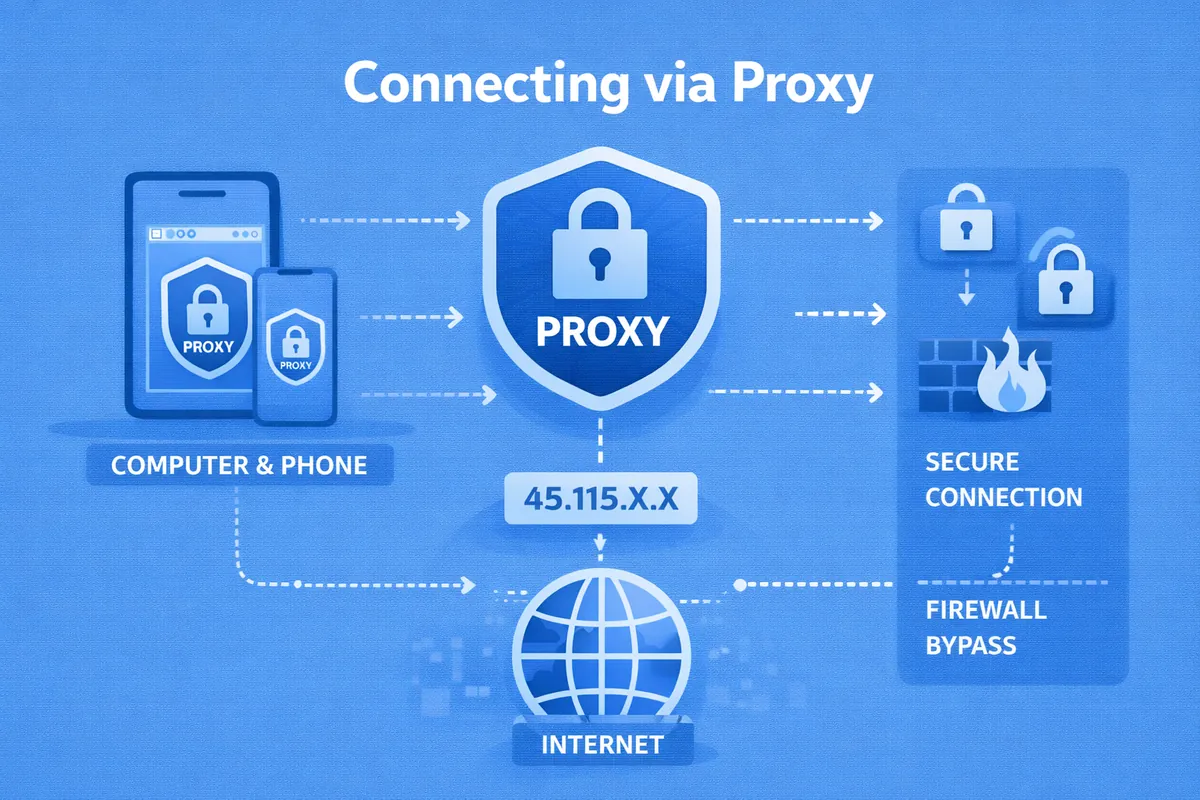
A proxy server is an intermediary between the user’s device and the target internet resource. It receives requests, forwards them to the necessary websites, and returns responses back. It is important not only to connect to it correctly but also to be able to quickly disconnect it if problems arise. When a proxy connection is configured properly, it allows bypassing restrictions imposed by ISPs or regulatory authorities, quickly accessing web pages, ensuring a high level of privacy, and preventing direct tracking of your IP address.
Quick Start: How to Check if a Proxy is Working
Before setting up a proxy connection, you need to make sure the proxy server is active, has sufficient speed and anonymity, and is not on any blacklists. This helps users avoid connection issues, freely visit websites, and use online services. There are several ways to check if a proxy is working:
- Using online proxy checkers. Users should first visit any IP-checking site without a proxy to see their real IP address. After configuring the browser to use the proxy, reload the page of the online checker. If the displayed IP address changes to the proxy server’s IP, then the proxy is working.
- Checking in the browser or OS settings. Users can manually verify the proxy settings in the OS or browser to ensure there are no typos in the IP address or port number. On Windows 10/11, go to Settings → Network & Internet → Proxy. Ensure that the information in the Manual proxy setup section is correct. In the browser, go to Settings → System → Open your computer’s proxy settings.
- Using the command line. To check the connection, you can use the ping command. Open the command prompt and enter ping [proxy IP address]. If a response is received, the proxy server is reachable on the network.
It is also recommended to test after disconnecting the proxy to ensure that the connection has returned to the normal state and traffic flows directly.
Connecting to the Internet via Proxy: Detailed OS Instructions
Internet connection through a proxy can be configured in the settings of Windows 10/11, macOS, and Android operating systems.
Setup on Windows 10 / 11
Proxy setup in Windows 10 and 11 is done through the Settings menu. The user needs to go to Network & Internet and select Proxy. In the Manual proxy setup section, turn on the switch, then enter the proxy server’s IP address and port in the corresponding fields. If necessary, specify websites for which the proxy will not be used. The user only needs to save the settings. To disable the proxy connection, simply turn off the manual setup switch.
Setup on macOS
For computers and laptops running macOS, open System Preferences and go to the Proxies section. The user should select the type of proxy server they plan to use (HTTP, HTTPS, SOCKS) by checking the corresponding box. Then, on the right side of the window, enter the proxy server’s IP address and port number. If a username and password are required, check the Require password box and enter the authentication details. Click Apply to save the changes. To remove the connection, uncheck the selected proxy types.
Setup on Android
On smartphones, tablets, and other portable devices running Android, proxy settings are applied individually to each Wi-Fi network. The user should open Settings, go to Network & Internet or Connections, and select Wi-Fi. Press and hold the gear/arrow icon next to the Wi-Fi network name, then select Modify network. In the network settings, find the Proxy section and manually update the parameters. Enter the proxy host name (IP address) and proxy port in the respective fields. Save the settings. Setting up a proxy over mobile data may require third-party apps.
Browser-Only Proxy Setup
A proxy can be configured in various browsers: Chrome, Edge, Opera, Yandex Browser, Mozilla Firefox.
Chromium-based browsers (Chrome, Edge, Opera, Yandex Browser)
These browsers use the system proxy settings. Configuring the proxy at the OS level is sufficient for them. Specialized extensions are often used to set individual proxy configurations for a specific browser, ensuring independence. These extensions allow enabling or disabling the proxy with a single click and quickly switching profiles.
Mozilla Firefox
Firefox has its own proxy settings, independent of the system. To configure a proxy in this browser:
- Open settings. Click the menu button in the top-right corner and select Settings.
- Go to the proxy section. In the left menu, select General. Scroll down to the Network Settings section and click Settings.
- Enter proxy details. In the opened window, choose Manual proxy configuration. Enter the IP address and port for the relevant protocols (HTTP Proxy or SOCKS Host). If the settings are the same for all protocols, check Use this proxy server for all protocols. Click OK to save the changes.
With this setup, the user configures the proxy only for Mozilla Firefox, without affecting other applications or the operating system settings.
Common Issues: Why the Proxy Doesn’t Work and How to Fix It
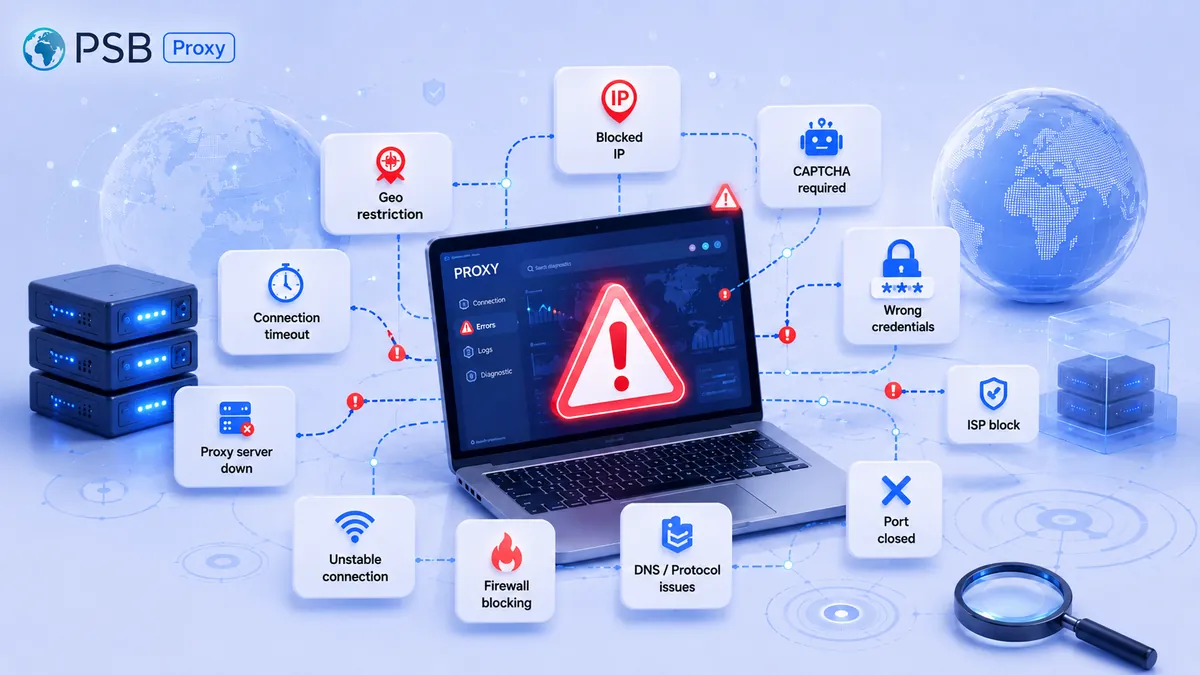
When configuring and connecting a proxy, users may encounter various problems:
- “Unable to connect to the proxy server” error. Make sure the server itself is running stably and that the proxy IP address and port are entered correctly. Firewalls or antivirus software may block the connection. Try temporarily disabling them.
- Websites load very slowly. Some free proxies can be very slow. A full cache often slows down page loading. In this case, clear your browser’s cache and cookies. You can also try resetting network settings in Windows.
- Proxy is set up, but the IP does not change. Make sure the proxy is enabled in the browser or system. If using a SOCKS proxy, it must be configured in the proper place, not only in system settings. Sometimes third-party software or malware may intercept traffic.
Proxy setup should be performed according to the user’s specific requirements, the installed operating system, or the application being used. A properly configured and connected proxy ensures anonymity and provides access to blocked internet resources.