

 Русский

 January 3, 2026
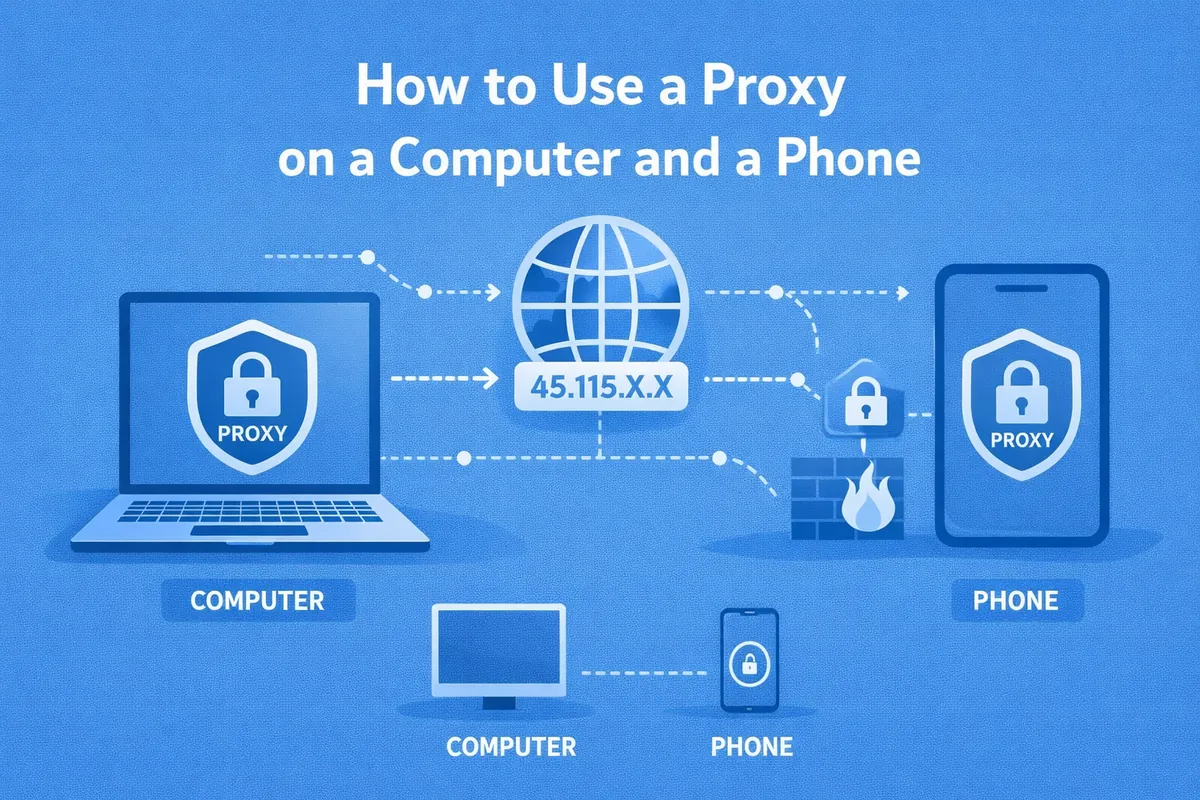
A proxy server acts as an intermediary between a user’s device and internet resources. Instead of a direct connection, requests are first sent to the proxy and only then to the target website, which makes it possible to change the IP address, geolocation, and network signature.
Proxies are used to solve different tasks:
- by regular users to protect personal data and reduce digital footprint, maintain privacy, and gain access to blocked websites;
- by marketers and SEO specialists to analyze search engine results and work with advertising campaigns;
- by developers and testers to emulate different regions;
- by arbitrage specialists, SMM managers, and parsers for mass and automated actions;
- by businesses to distribute traffic and access corporate resources.
Before configuration, it is important to determine exactly why a proxy is needed. For permanent use, global configuration is suitable; for specific tasks, a proxy in the browser is sufficient; and for automation, advanced tools with flexible settings are used.
Scenario A: Configure a Proxy for the Entire Computer or Phone
Global proxy configuration means that all network traffic of the device passes through the proxy server without exceptions. This applies to browsers, background applications, system services, and updates.
This option is convenient if the proxy is used constantly and there is no need to separate traffic. However, if the proxy works unstably, problems may occur simultaneously in all applications on the device.
Configuration on a Computer with Windows 10/11
Global proxy configuration on a PC in Windows 10 and Windows 11 is performed through system network settings. The operating system automatically applies the proxy to all programs that use the standard Windows 10 and Windows 11 network stack. HTTP and HTTPS proxies are supported natively, including authentication. SOCKS proxies require additional software, since Windows cannot work with them directly without intermediaries.
Setup:
- Open Settings → Network & Internet → Proxy.
- In the “Manual proxy setup” section: enable the toggle, specify the proxy IP address, specify the port.
- If necessary, enable authentication and specify the login and password.
- Save the changes.
On an Android Phone
On Android devices, a proxy is configured separately for each Wi-Fi network, not for the entire system as a whole. This means that when the network changes (another access point or mobile internet), the proxy will not be used.
This approach is convenient for home or work Wi-Fi but limited in mobile scenarios. Also, most Android versions support only HTTP proxies without advanced features.
On iPhone
On iPhone, the configuration principle is similar to Android: the proxy is tied to a specific Wi-Fi network. All applications that use the internet through this network automatically work through the proxy.
iOS strictly limits network settings, so SOCKS proxies and flexible routing are unavailable without third-party solutions. This makes the iPhone convenient for basic tasks, but not for complex scenarios.
Scenario B: Configure a Proxy Only for the Browser
In this case, the proxy is applied exclusively to the browser’s web traffic, while other applications continue to work directly. This allows you to separate work and personal scenarios without affecting the system as a whole. It is useful for working with accounts, testing websites, and marketing tasks. The risk of malfunctions is reduced, and managing multiple proxies at the same time becomes easier.
Configuration in Chrome Browser
By default, Chrome on a computer uses the system proxy settings, which is convenient for simple scenarios. However, when working with multiple IPs, this quickly becomes inconvenient. Extensions allow creating proxy profiles, switching between them with one click, and setting rules for individual websites. This provides full control over which traffic in the browser goes through which proxy.
Configuration in Browser on a Phone
On a phone, mobile versions of Chrome and Safari do not support individual proxy settings. They always use the system proxy set at the Wi-Fi level.
Alternative browsers (for example, Firefox) allow specifying a proxy. This makes them the preferred choice for mobile work with proxies in a smartphone browser.
Scenario C: Advanced Configuration for Specific Programs and Tasks
Advanced configuration is applied when standard system capabilities are not enough. It allows precise control over which programs use the proxy and how they use it. This is relevant for automation, web scraping, working with APIs, and applications that do not support proxies natively. Flexibility, logging, and DNS control are important here.
On PC: Using Proxifier
Proxifier intercepts network requests from applications on the computer and forcibly routes them through a specified proxy.
Features:
- Works even for programs that do not have their own network settings.
- The rules system allows assigning different proxies for different applications or ports.
- Logs and statistics provide a precise understanding of which traffic goes where.
On Android: Using an Application
For smartphones, tablets, e-readers, and other devices running Android, specialized apps perform a similar function, but taking into account the limitations of the mobile system. They create a local VPN interface through which traffic is redirected. Some solutions require root access for deeper control. This is justified in professional scenarios, but excessive for an ordinary user.
How to Check if a Proxy is Working?
There are several ways to quickly check functionality. Most often, the following methods are used:
- IP Address Check: Comparing the IP before and after enabling the proxy quickly shows whether the outgoing address has changed. If the IP matches the proxy, the connection is working correctly.
- Geolocation Check: Geolocation services display the country, city, and ISP of the IP. This is important for tasks where the access region matters.
- DNS Leak Check: Even with a working proxy, DNS requests may go directly. Special tests can identify such leaks.
- HTTP Header Analysis: Request headers show the real connection path and the presence of a proxy. This is useful for technical diagnostics.
- Proxy Server Logs: If you have access to the logs, you can see all incoming connections. This is the most accurate way to check.
- Proxifier Logs: The program shows which application is using the proxy and under which rule. This simplifies debugging complex setups.
- Speed and Stability Test: Measuring ping and bandwidth helps assess proxy quality. Slow or unstable proxies are better replaced.
- Testing Through Different Websites: Some resources respond differently to proxies. Checking several sites provides a more objective picture.
Common Problems and Their Solutions
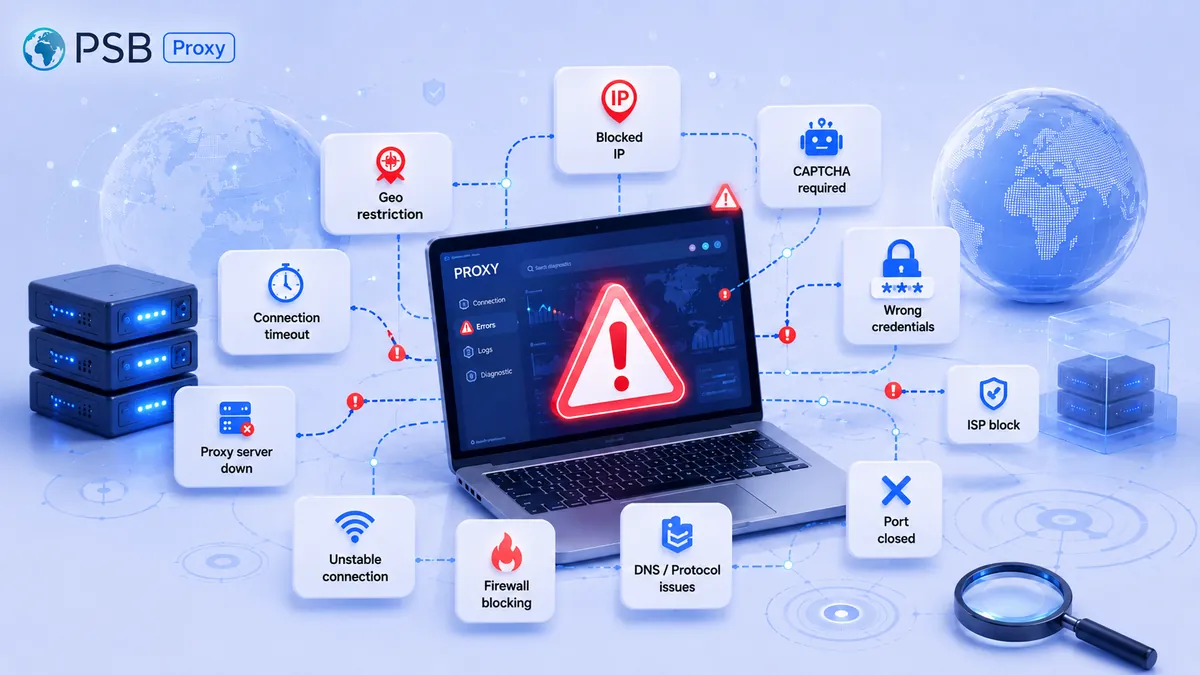
Common issues include:
- Proxy does not connect: An error in IP, port, or proxy type. Server-side connection blocks are also possible.
- Internet completely disappears: Indicates proxy is unavailable or login credentials are incorrect. In global settings, this affects all applications on the computer or phone immediately.
- Not all traffic works: Some applications ignore the system proxy. In such cases, advanced routing is required.
- Low connection speed: Speed depends on proxy load and physical distance to the server. Free proxies are usually slow.
- DNS leaks: Occur when DNS requests are not handled correctly. Solved by enabling DNS through the proxy or using specialized tools.
A proxy is not a universal “one-click” solution in a browser, but a flexible tool with different use scenarios. It can be used globally, locally in a browser, or specifically for certain applications.
On mobile devices running Android and iOS, capabilities are limited, but with the right choice of tools, proxies effectively solve tasks. The key is to understand the purpose, consider system limitations, and choose the appropriate level of configuration.