


Telegram is no longer just a messaging app — for many people, it is a full-scale work tool. It is used for client communication, channel management, service notifications, file sharing, and day-to-day team coordination. That is why connection issues are especially frustrating: your internet is up, websites load normally, but Telegram gets stuck on “Connecting…”, takes forever to load media, or fails to send messages on time.
In many cases, the problem is not the app itself but the network path between your device and Telegram’s servers. If your ISP, office network, or local infrastructure handles that traffic poorly or inconsistently, using a proxy for Telegram can be a practical fix.
In this guide, we will break down what a Telegram proxy is, how MTProto differs from SOCKS5, how to choose a reliable server, how to configure a proxy in Telegram on Android, iPhone, and desktop, and what to look for if you need a stable long-term setup.
What Is a Proxy for Telegram?

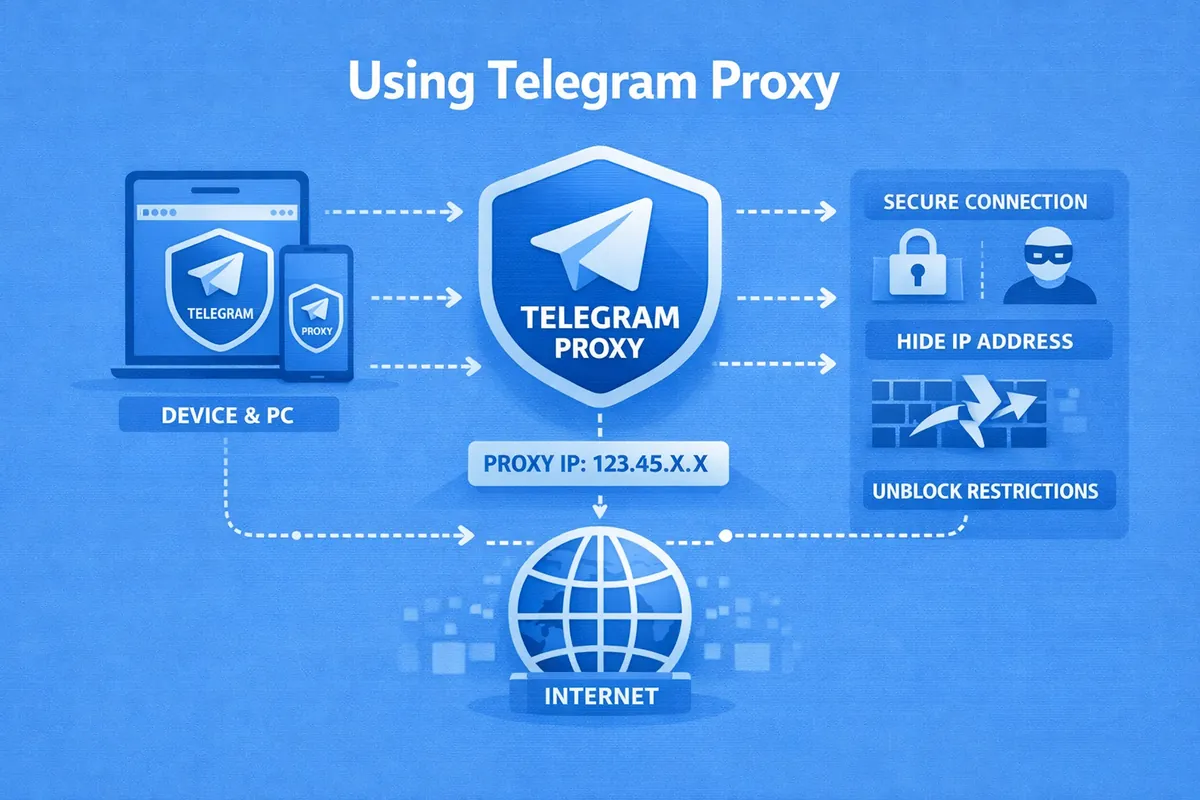
A proxy server is an intermediary node between your device and Telegram’s servers. Instead of connecting directly, the app first connects to the proxy, which then forwards the traffic onward.
Put simply, a proxy for Telegram changes the route your Telegram traffic takes. That can help when the default route is unstable, overloaded, or affected by aggressive filtering somewhere along the way.
The key point is this: in Telegram, a proxy usually affects Telegram traffic only, not all internet traffic on your device. That is one of the main differences between a proxy and a VPN.
When a Telegram Proxy Actually Makes Sense
Proxy setup is useful not only when Telegram does not open at all. In real-world scenarios, users more often run into softer but still annoying problems, such as:
- Telegram takes a long time to connect after launch;
- messages are sent with a delay;
- media loads much slower than usual;
- calls or voice messages behave inconsistently;
- the app gets stuck in an endless “Connecting” state;
- Telegram works fine on one network but poorly on another.
In all of these situations, a proxy can be more than just a workaround. It can help stabilize Telegram connectivity and make the route to Telegram’s servers more predictable.
Proxy vs VPN: What Is the Difference?
This is one of the most common questions because, from the outside, both tools seem similar: a proxy and a VPN both change how your traffic is routed. But technically, they solve different problems.
Telegram Proxy
- primarily affects Telegram traffic;
- is usually easier to configure directly inside the app;
- does not automatically reroute all traffic from your phone or computer;
- offers a more targeted fix for the messaging app itself.
VPN
- changes the route for the entire device or system;
- affects browsers, apps, and background connections alike;
- can add more overhead if the setup is not optimal;
- is better when you need broader traffic routing beyond Telegram alone.
If your goal is specifically to improve Telegram connectivity, a proxy is often the cleaner and more focused option.
What Proxy Types Does Telegram Support?
Telegram supports two main proxy types:
- MTProto;
- SOCKS5.
Both are valid options, but they are better suited to slightly different use cases.
MTProto Proxy for Telegram: When It Is the Best Choice
MTProto is Telegram’s native proxy option, designed specifically for this messenger. In many situations, it provides better stability and more predictable behavior.
Benefits of MTProto
- better aligned with Telegram’s architecture;
- often provides a more stable connection;
- simple to configure;
- can perform better in more restrictive or unstable network environments.
When to Choose MTProto
- if you need a proxy specifically for Telegram, not for other apps;
- if direct Telegram connectivity is unstable;
- if you want a straightforward setup with fewer moving parts.
In many scenarios, an MTProto proxy for Telegram is the most practical choice for everyday use.
SOCKS5 for Telegram: When It Makes More Sense
SOCKS5 is a more universal protocol. It is not limited to Telegram and can be a good fit for people who already use proxies in other applications or want to reuse the same proxy for multiple tasks.
Advantages of SOCKS5
- versatility;
- compatibility with many applications;
- support for username and password authentication;
- a familiar setup for people who regularly work with proxies.
When to Choose SOCKS5
- if you already have a reliable SOCKS5 proxy;
- if you want a more general-purpose option, not just something for Telegram;
- if you plan to use the proxy in tools beyond the messenger itself.
If your use case is narrowly focused on Telegram, though, MTProto is usually the better place to start.
MTProto vs SOCKS5: Which One Should You Pick?
If you want the short answer, most Telegram users should start with MTProto. It is simpler, usually performs well specifically with Telegram, and maps better to how the app itself works.
SOCKS5 is the better choice when you need more flexibility, broader compatibility, and a more general proxy format.
In practice, the decision often comes down to this:
- for Telegram as a messaging app — MTProto;
- for broader network use cases — SOCKS5.
How to Choose a Good Proxy for Telegram
One of the most common mistakes is grabbing the first public proxy from a random list. It may technically connect, but in practice it can make things worse by introducing high latency, dropped sessions, or unstable media loading.
Here is what actually matters when choosing a proxy.
1. Server Location and Latency
The farther away the proxy server is physically, the more delay you are likely to see. If the server is located too far from you, messages may take longer to send and media may load more slowly.
In Telegram, you can usually use ping or latency as a practical reference point. The lower the value in milliseconds, the better.
2. Stability, Not Just “It Connects”
A proxy may connect and still be useless in day-to-day operation. What matters is:
- how quickly the connection is established;
- whether sessions drop unexpectedly;
- how photos, videos, and voice messages load;
- whether performance stays stable at different times of day.
3. Public vs Private Proxy
Free public proxies may be enough for a quick test, but they are rarely a good fit for long-term use. The reasons are straightforward:
- too many users may be sharing the same server;
- these servers are often overloaded;
- they are more likely to end up on blocklists;
- there is no real guarantee of stability or operational safety.
If Telegram matters for work, channel management, customer support, or everyday communication, private proxies are usually the smarter choice.
4. Match the Proxy Type to Your Actual Use Case
If you are configuring Telegram only, go with MTProto.
If you already have SOCKS5 infrastructure or want to use the proxy more broadly, SOCKS5 may be the better fit.
5. Provider Reputation Matters
Proxy reliability usually does not come from “magic settings”. It comes from the quality of the provider’s infrastructure: routing, uplinks, node load, and support.
If you want a more predictable setup, choose a service with clear plans, support, and properly provisioned connection details. For example, psbproxy.io is a reasonable option if you need private proxies for stable day-to-day workflows instead of relying on random public lists. That becomes especially useful when Telegram is something you depend on regularly, not just an app you open once in a while.
What Data Do You Need to Set Up a Proxy in Telegram?
Before enabling a proxy, make sure you have the connection parameters ready. Depending on the proxy type, Telegram will ask for slightly different information.
For MTProto
- Server / Host — the server address;
- Port — the port number;
- Secret — the connection key.
For SOCKS5
- Server / Host — the server address;
- Port — the port number;
- Username — if authentication is required;
- Password — if authentication is required.
If even one parameter is entered incorrectly, Telegram may either fail to connect entirely or connect in an unstable way.
How to Set Up a Proxy in Telegram on Android
Setting up a Telegram proxy on Android usually takes only a couple of minutes.
Step-by-Step Instructions
- Open Telegram.
- Go to Settings.
- Open Data and Storage.
- Find Proxy or Proxy Settings.
- Tap Add Proxy.
- Select the type: MTProto or SOCKS5.
- Enter the server, port, and the remaining details.
- Save the settings.
- Enable Use Proxy.
Telegram will then try to connect through the specified server. If the details are correct and the proxy is alive, the status should switch to active.
What to Check If It Does Not Connect
- make sure there is no typo in the server address;
- verify the port number;
- check that the MTProto secret is correct;
- confirm the proxy has not expired;
- make sure the server is not overloaded.
How to Set Up a Proxy in Telegram on iPhone (iOS)
On iPhone, the process is very similar.
Instructions for iOS
- Open Telegram.
- Go to Settings.
- Open Data and Storage.
- Find the Proxy section.
- Tap Add Proxy.
- Select MTProto or SOCKS5.
- Enter the connection parameters.
- Tap Done.
If the proxy is valid, Telegram will show that the connection has been established.
Tip
On iPhone in particular, be careful when pasting connection values. Invisible spaces or formatting artifacts are a surprisingly common reason why a proxy fails to connect.
How to Set Up a Proxy in Telegram Desktop on PC
On desktop, the setup is also handled directly inside the app.
Instructions for Telegram Desktop
- Open Telegram Desktop.
- Click the menu button.
- Go to Settings.
- Open Advanced.
- Find Connection Type or the Network and Proxy section.
- Select Use custom proxy.
- Choose the proxy type and fill in the required details.
- Save the settings.
After that, Telegram Desktop will start using the new network route.
If Telegram on Desktop Is Still Slow Even with a Proxy
- check latency to the server;
- try another region;
- compare MTProto and SOCKS5 performance;
- make sure your underlying internet connection is stable;
- rule out antivirus software, a corporate firewall, or system-level filtering.
Why a Telegram Proxy May Stop Working
Even a correctly configured proxy does not guarantee flawless operation forever. There are several common reasons why it may stop working.
Most Common Causes
- the server is overloaded;
- the proxy is no longer active;
- the selected region is too far away;
- your ISP is degrading or inconsistently handling the route;
- the connection details were entered incorrectly;
- the public proxy has already been blocklisted;
- the MTProto secret is invalid.
If you do not want to keep cycling through random server addresses, it is usually better to start with a service that offers more stable provisioning and support.
Is It Safe to Use a Proxy for Telegram?
This is an important question, and the honest answer is not as simple as “yes” or “no”.
A proxy is not a magic security tool by itself. Its main job is to change the network path. How safe it is in practice depends on several factors:
- which proxy type you are using;
- who operates the server;
- how trustworthy the provider is;
- whether you are using a public or private proxy;
- whether you are sending sensitive information through questionable infrastructure.
That is why free public proxies are better treated as temporary experiments, not as a serious long-term option. If you rely on Telegram for work, customer communication, or project management, private proxies from a credible provider are generally the safer operational choice.
Which Is Better for Telegram: Free or Paid Proxy?
From a practical standpoint, the answer is fairly clear.
Free Proxy
- fine for one-off testing;
- often unstable;
- may be overloaded;
- can stop working quickly;
- rarely suitable for consistent long-term use.
Paid Private Proxy
- typically more stable;
- comes with clear connection details;
- offers more predictable performance;
- is better suited to ongoing use;
- reduces the need to constantly hunt for another server.
If Telegram is important for your business, team, customer support, or day-to-day communication, a paid option usually pays for itself simply by saving time and frustration.
A Practical Recommendation: What Service to Consider
If you are looking for a setup that is practical rather than theoretical, it makes sense to look beyond “proxy lists” and focus on providers with real infrastructure and usable connection details.
psbproxy.io is worth considering if you need private proxies for Telegram, messaging apps, and other day-to-day workflows. This is especially useful when the priorities are:
- stable connectivity;
- more predictable performance;
- avoiding overloaded public servers;
- getting ready-to-use setup details quickly.
The main value here is not some magical workaround. It is better routing quality and less dependence on random free proxy sources.
FAQ: Common Questions About Telegram Proxies
Does a Telegram proxy slow down the internet?
It can either slow Telegram down or improve its performance. It all depends on route quality. A good nearby server can sometimes work better than the default route, while a poor remote one can add noticeable latency.
What is better for Telegram: MTProto or SOCKS5?
For most users, MTProto is the better starting point because it is better aligned with Telegram itself. SOCKS5 makes more sense when you need broader compatibility.
Will calls and media work through a proxy?
In many cases, yes, but quality depends on the specific server, latency, and overall connection stability.
Why did the proxy work yesterday but not today?
The server may have become overloaded, gone offline, changed routing, or ended up behind new restrictions. That is a common issue with unstable public proxies.
How many backup proxies should I keep?
If Telegram is business-critical, keeping at least one backup option is a sensible idea. It reduces downtime if the main server develops issues.
Does a proxy protect all of my internet activity?
No. In the Telegram context, a proxy usually affects Telegram traffic only, not every other application on your device.
Conclusion
A proxy for Telegram is not a gimmick. It is a practical network tool that can help stabilize the route to Telegram’s servers when the direct path performs poorly. For most users, an MTProto proxy is the best starting point because it is well suited to Telegram and usually easier to configure.
If you are not looking for a temporary test but for reliable day-to-day operation without constantly hunting for new addresses, it makes sense to move straight to private solutions. In that case, services like psbproxy.io are a logical option if you want more predictable connection quality and ready-to-use settings for both mobile devices and desktop.