

 November 11, 2026
To turn off a proxy on iPhone, open Settings → Wi-Fi, tap the ⓘ icon next to the network you are connected to, scroll down to the HTTP Proxy section, open Configure Proxy and choose Off. You set up a proxy in the same place: choose Manual and enter the server, port, username and password. Below are both scenarios step by step, plus what to do if sites stop opening after you change the settings. A general guide for every device is in our article on how to use a proxy, and you can pick addresses in the mobile proxies and residential proxies sections.
Where the proxy settings are on iPhone
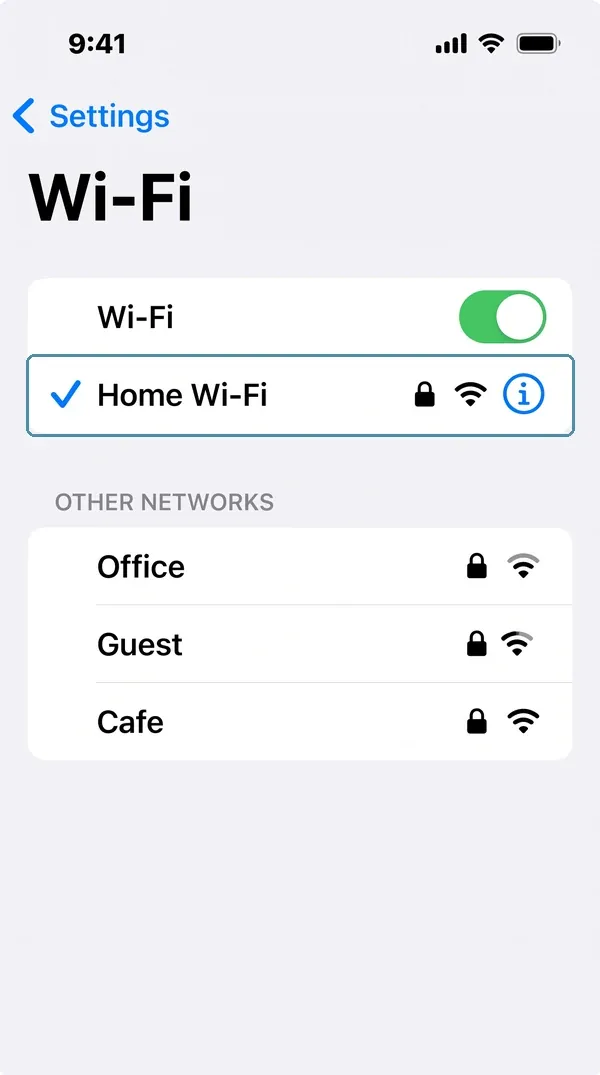
On iOS a proxy is set per Wi-Fi network, not for the whole system. So the setting lives in the details of the network itself:
1. Open Settings and go to Wi-Fi.
2. Tap the ⓘ icon to the right of the network you are connected to.
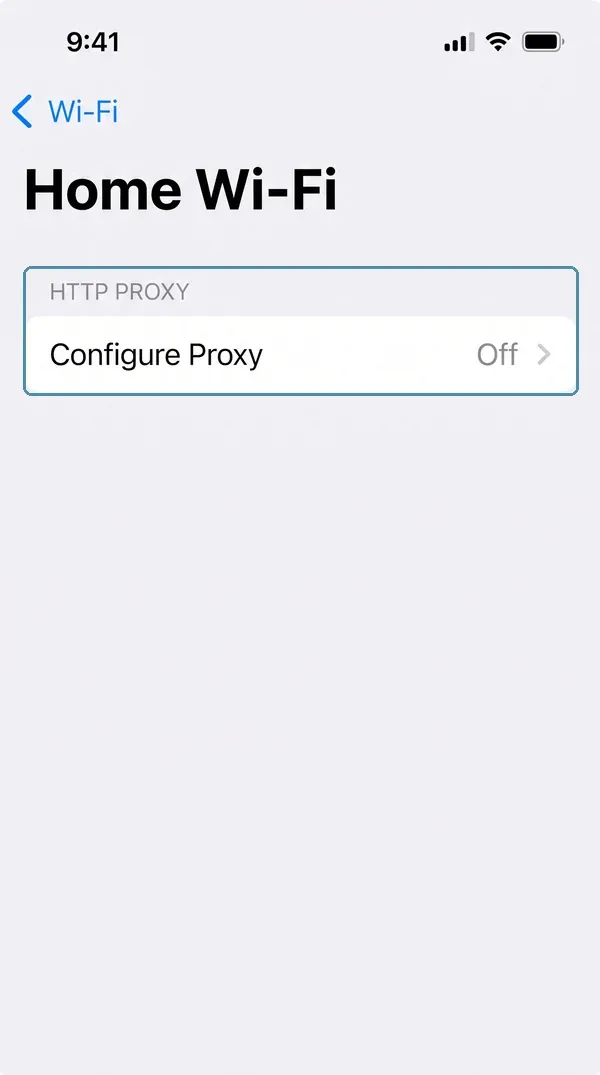
3. Scroll down to the HTTP Proxy section: the Configure Proxy item is there.
There are three options: Off, Manual and Automatic. Whatever you choose applies only to this network. Connect to another Wi-Fi and the proxy will not be there until you set it up separately. The same steps work on iPad.
|
Step 1: the ⓘ icon next to your network. |
Step 2: the HTTP Proxy section on the network screen. |
How to set up a proxy manually: server, port, login
Take the connection details from your proxy dashboard: host (server), port, username and password. The standard iPhone setting needs an HTTP or HTTPS proxy. iOS does not support SOCKS5 in these settings, so choose an HTTP(S) port in the dashboard.
1. In the HTTP Proxy section, open Configure Proxy and choose Manual.
2. In the Server field enter the proxy host, in the Port field the port number. Without http:// and without a colon.
3. Switch on Authentication and enter the Username and Password from the dashboard.
4. Tap Save in the top right corner.
If your access is set up through an IP whitelist, you do not need to switch on Authentication, but then the public IP of this exact Wi-Fi network must be on the list. A home connection often changes its address, so with a whitelist it is easier to recheck the address from time to time. The IP whitelist guide shows how to add it.
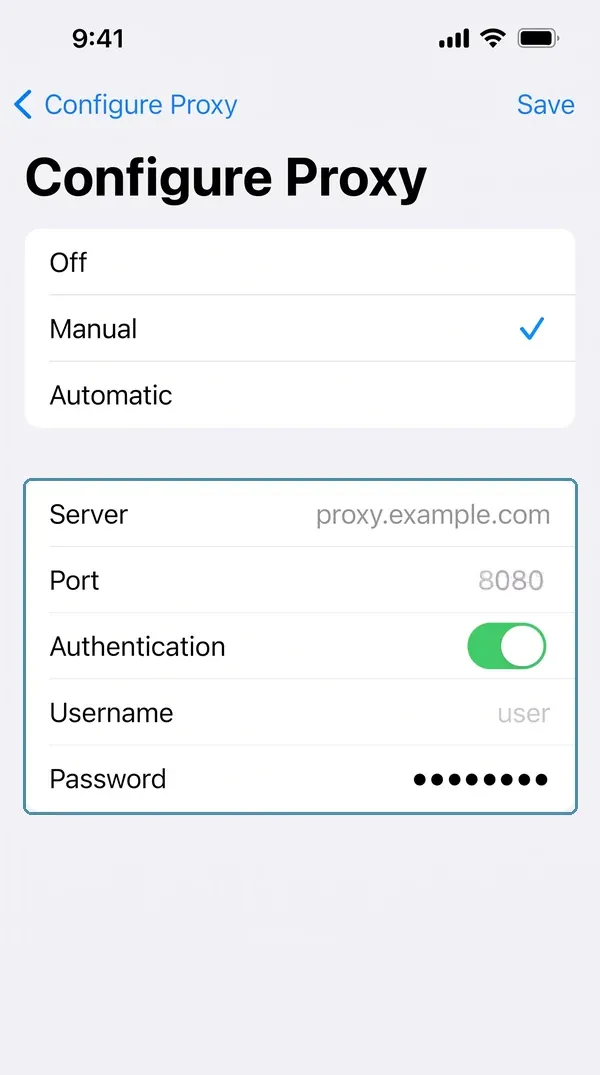
Manual setup: server, port and sign-in details.
To check the result, open any service that shows your IP in Safari. The address and country should match the proxy. If a site does not open or still shows your old address, go to the troubleshooting section below. We collected a general guide for all devices in the article on how to use a proxy on a computer and a phone.
Automatic setup (PAC): when you need it
The Automatic option does not take a server address. It takes a link to a proxy settings file, known as a PAC file. You paste the address of that file into the URL field, and iPhone decides for itself which sites should use the proxy. This is mostly used in work networks where an administrator manages the proxy.
For the usual case of a single proxy from a service you do not need it: Manual is enough. Use Automatic only if you were given a PAC file link. If you do not remember whether you ever set this up and your internet behaves strangely, look at the Configure Proxy item. Often it holds a forgotten Automatic setting with someone else's address.
How to turn off a proxy on iPhone
1. Settings → Wi-Fi.
2. Tap ⓘ next to the network where you set up the proxy.
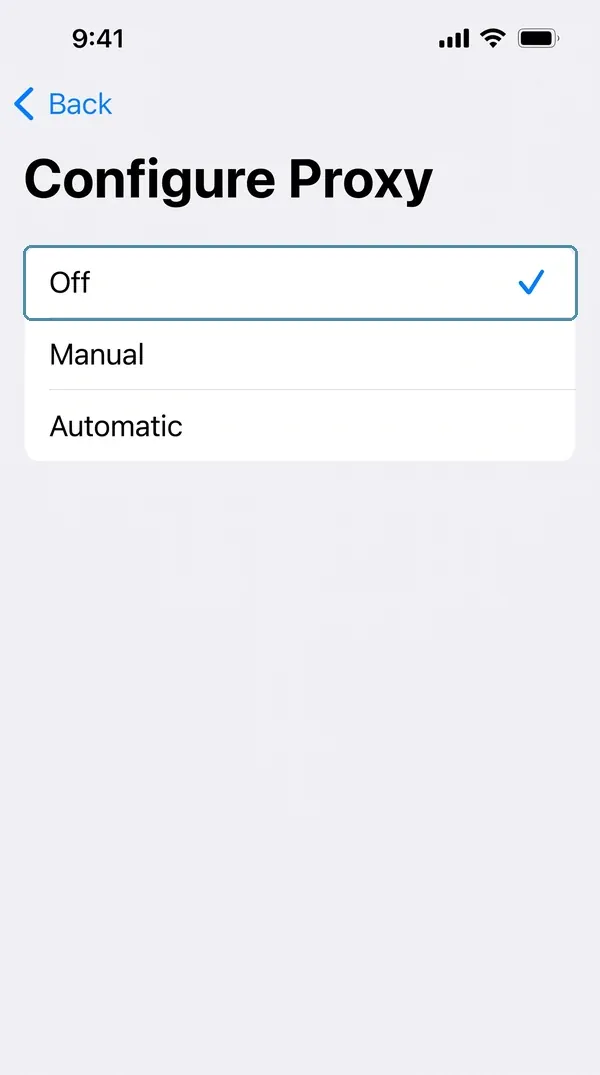
3. At the bottom, in the HTTP Proxy section, open Configure Proxy and choose Off.
If you also want to remove the saved details, first open Manual, clear the server, port and username fields, and then choose Off. If you used several networks, for example at home and in the office, repeat the steps for each one: turning it off in one network does not affect the others.
|
Choose Off. |
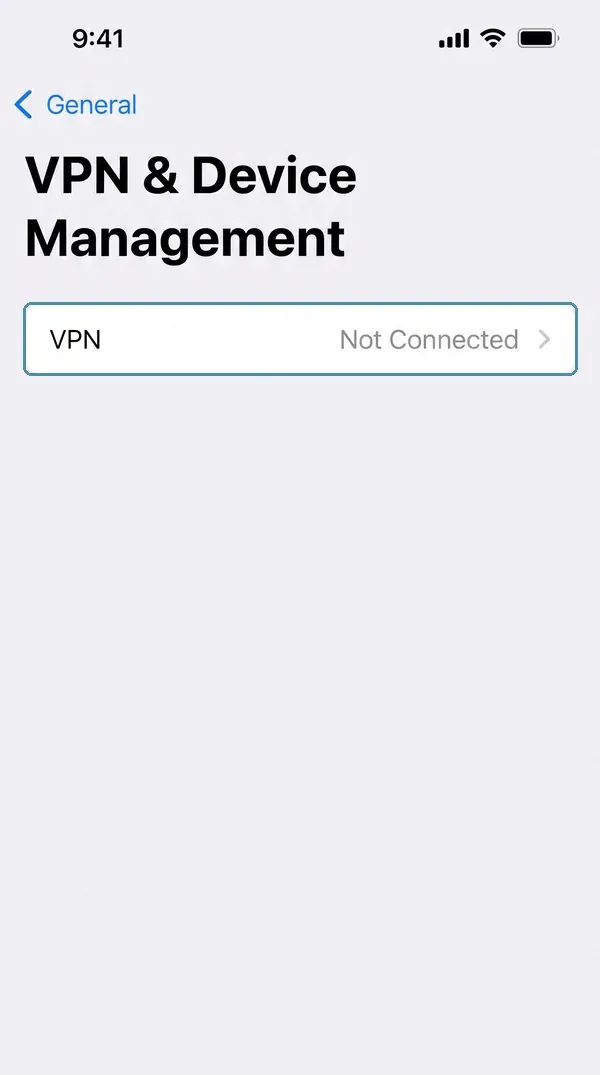
If the proxy keeps coming back, check the profiles. |
If the proxy keeps working after you turn it off
Then it is not set in Wi-Fi. Check:
-
Settings → General → VPN & Device Management: on a work or school phone a configuration profile can force a proxy;
-
the VPN section in Settings and third-party apps that create a local VPN and route traffic through it. Turn them off and test again;
-
another network: the setting works only in the network where you made it.
Proxy on mobile data: iOS limits
iOS has no proxy field for cellular data. Whatever you set in Wi-Fi stops working as soon as the phone switches to mobile internet, and traffic goes out directly. This is a limit of the system, not a setup mistake.
|
How the iPhone is connected |
What happens to the proxy from Wi-Fi settings |
|
Wi-Fi, a network with a proxy set |
Works for all apps |
|
Another Wi-Fi |
Does not work until you set it up separately |
|
Mobile data (LTE, 5G) |
Does not work, there is no built-in setting |
Need a proxy on mobile data too? Apps from the App Store that create a local VPN profile can route traffic through a proxy, including SOCKS5. But such an app sees all of your traffic, so install only trusted ones and avoid "free proxy" apps: they are often unreliable and unsafe.
Do not mix up the way you connect with the type of address. Mobile proxies means the address belongs to a mobile operator, and you can connect them on iPhone the same way as any other proxy: over Wi-Fi, through Manual.
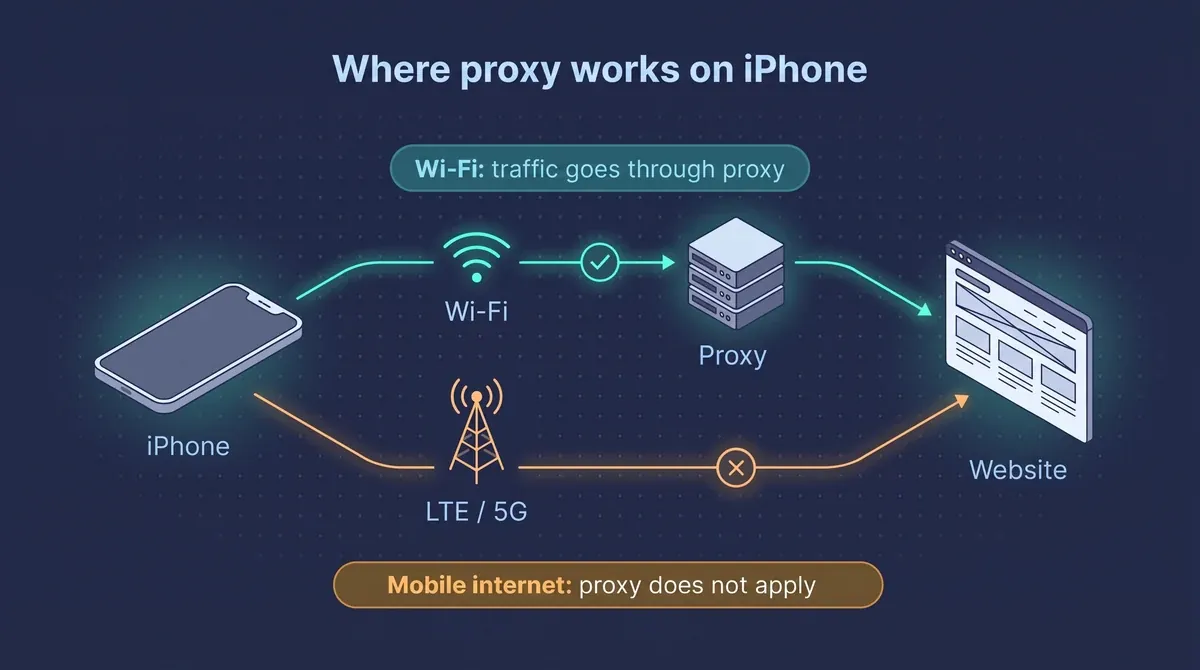
A proxy in iPhone settings is tied to the Wi-Fi network.
If sites do not open after setup
The most common causes, from simple to complex:
1. A typo. An extra space in the server, password or username. Open the setting again and re-enter the details.
2. The wrong port. A proxy has separate ports for HTTP(S) and SOCKS5. iPhone needs HTTP(S). If you entered a SOCKS5 port, sites will not open.
3. Authentication is off when access is by login and password, or your IP is not whitelisted when access is by IP.
4. Traffic or the plan has run out. Check the balance in the dashboard.
5. The proxy works, but not on this Wi-Fi. Some networks, especially work and public ones, block non-standard ports. Try another Wi-Fi.
6. A site opened in Safari, but an app does not work. Most apps use the system network settings, but those with their own network stack may ignore them. Test the same thing in Safari to see where the problem is.
A quick check that the proxy really switched on: open a service that shows your IP and country in Safari, turn the proxy off using the steps above and reload the page. The address should change to yours. If it does not change in either direction, the browser is using cached data or you are looking at the wrong network. Close the tab, open it again and repeat.
If nothing helped, go through the causes step by step in the article on why your proxy is not working. And if the internet is gone completely even after turning the proxy off, do this in order: switch Wi-Fi off and on, tap ⓘ → Forget This Network and reconnect, restart the phone. The last step: Settings → General → Transfer or Reset iPhone → Reset → Reset Network Settings. The reset removes saved Wi-Fi networks and their passwords, so do it last.
FAQ
Why does a proxy on iPhone work only on Wi-Fi?
Because iOS sets a proxy in the details of a specific Wi-Fi network. There is no built-in field for mobile data, so when you move to LTE or 5G, traffic goes out directly.
How do I turn off a proxy if the internet does not work?
Go to Settings → Wi-Fi → ⓘ next to your network → Configure Proxy and choose Off. If there is still no connection, forget the network and connect again, check the profiles under VPN & Device Management, and then restart the phone.
Do I need a separate VPN profile?
Not for the usual setup over Wi-Fi: it is done in the network settings. A profile or an app is needed only for SOCKS5 and for traffic on mobile data. Choose trusted apps from the App Store.
Which proxies work on iPhone?
For the built-in setting, use proxies with the HTTP or HTTPS protocol and access by login and password or by an IP whitelist. Choose the address type by task: residential, mobile or static. SOCKS5 cannot be connected on iPhone without a third-party app.